



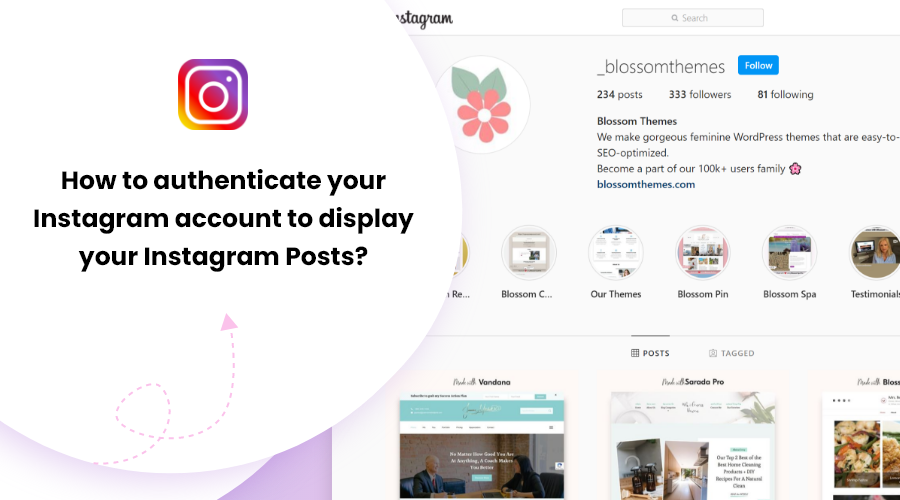
Recently, Instagram discontinued the Legacy API permission (“Basic”) and introduced Instagram Graph API and Instagram Basic Display API. We have updated our BlossomThemes Social Feed plugin with the new API.
To display your Instagram posts on your website, you need to authenticate the plugin to access your media and user information.
If you are using the Jetpack plugin, please deactivate it temporarily. The authentication process will fail if you are interrupted to enter your login credentials.
Besides this, also make sure that you have published at least one post on your Instagram account.
Here’s the step by step video tutorial:
Authenticate Instagram account to display your Posts
At first, install and activate BlossomThemes Social Feed plugin. Then, please follow the given steps to configure your Instagram profile on your website:
- Go to BlossomThemes Social Feed > General
- Click on Connect with Instagram button.
Now you will be asked for the Instagram login credentials. You can enter the login credentials of the account you want to use.
After you successfully log in, the plugin will ask permission to access your profile info and media. Click on Authorize to grant the permission.
Once you authorize it, the plugin will automatically insert the access token and user name.
Now, configure the additional settings like number of photos you want to display and photos per row. Finally, click on the Save Changes button. The Connect with Instagram button will change into Re-connect with Instagram.
This indicates that your account has been successfully authenticated. You can visit your site to see your Instagram posts.
Please note that the plugin will not show your posts until you click on Save Changes.
If you want to change use another Instagram account, you can clear the fields, click on the Save Changes button and then follow the above process once again.
Please feel free to reach out to our support team if you face any issues.